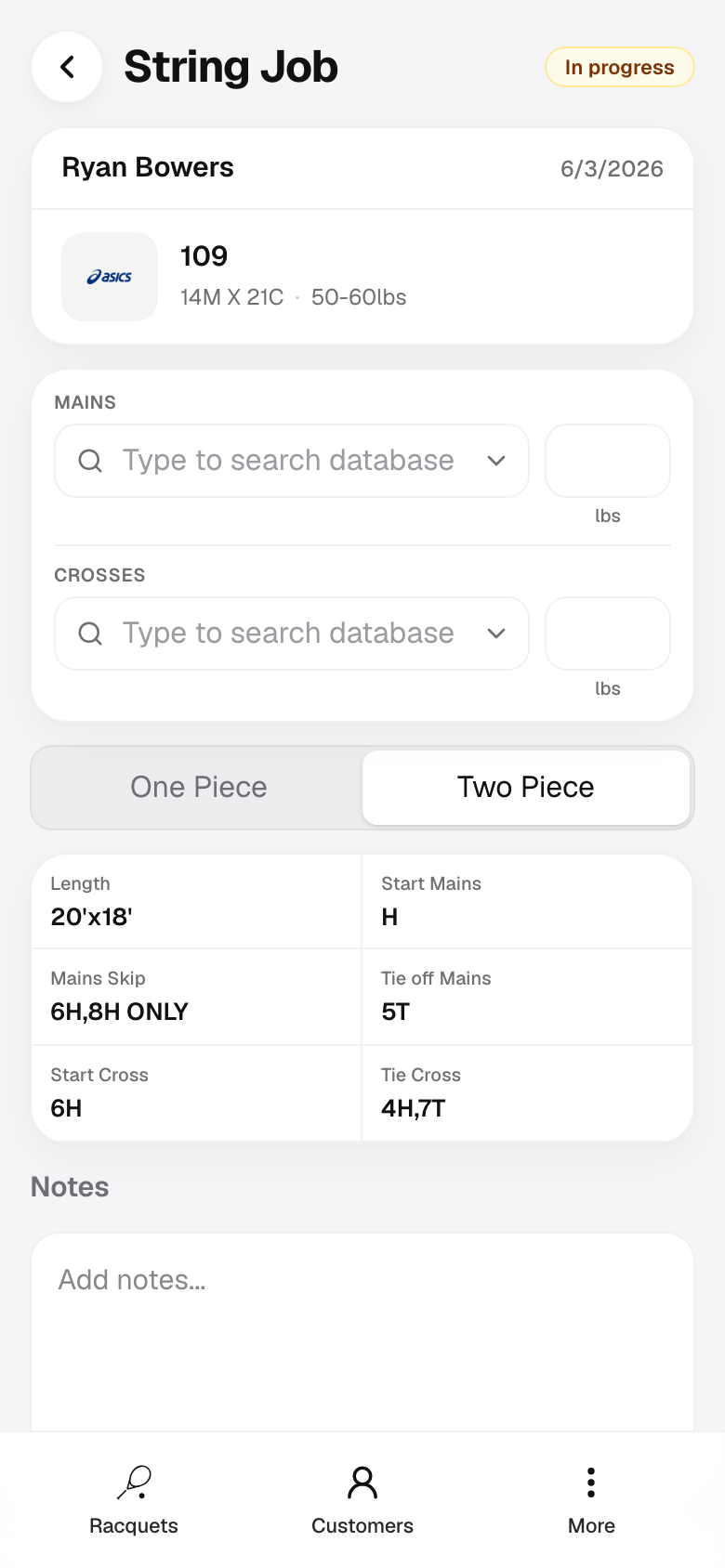
Open the customer
Tap Customers in the bottom navigation, then select the customer from your list.
Help Center · Start a string job
Every new job starts as a draft you can string and save. Use the path that fits how you work: pick the customer first, or browse racquets first.
Best when you already know who dropped off the racquet. The customer is fixed; you only choose brand and model.
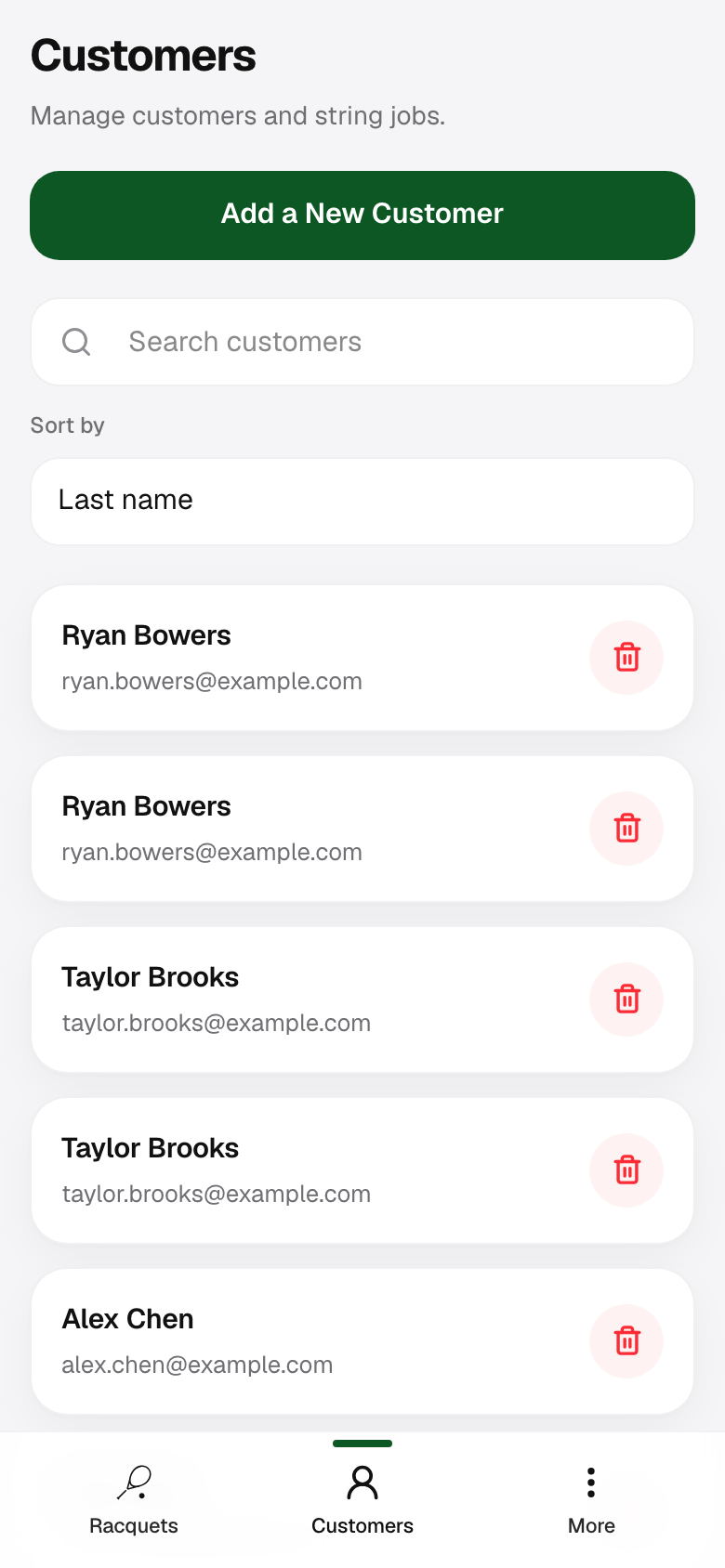
Tap Customers in the bottom navigation, then select the customer from your list.
On the customer profile, tap the green Start String Job button. You are taken to Racquets with that customer already attached.
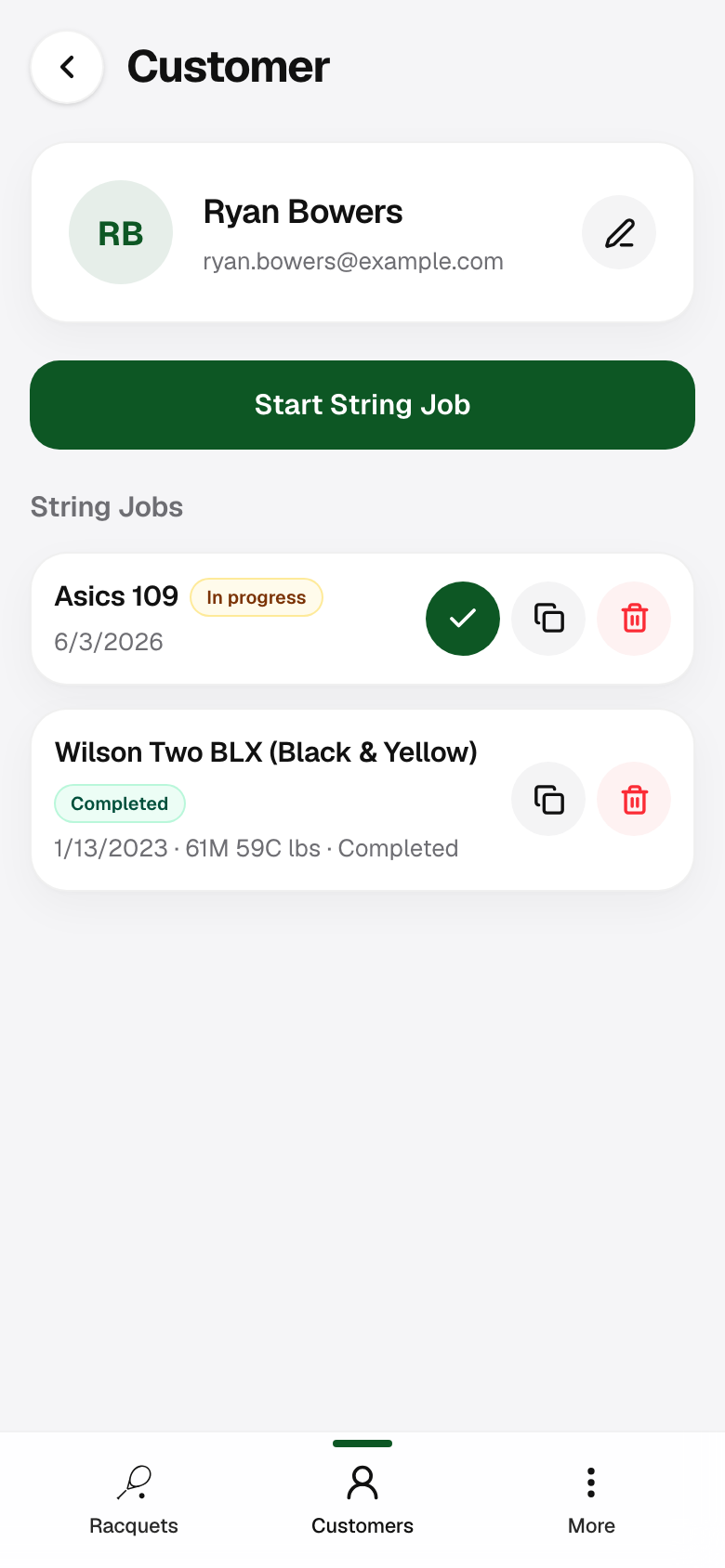
Search or scroll to the racquet brand, open it, then tap the model. With a customer already selected, tapping the model opens the draft job immediately — you do not need an extra Continue step.
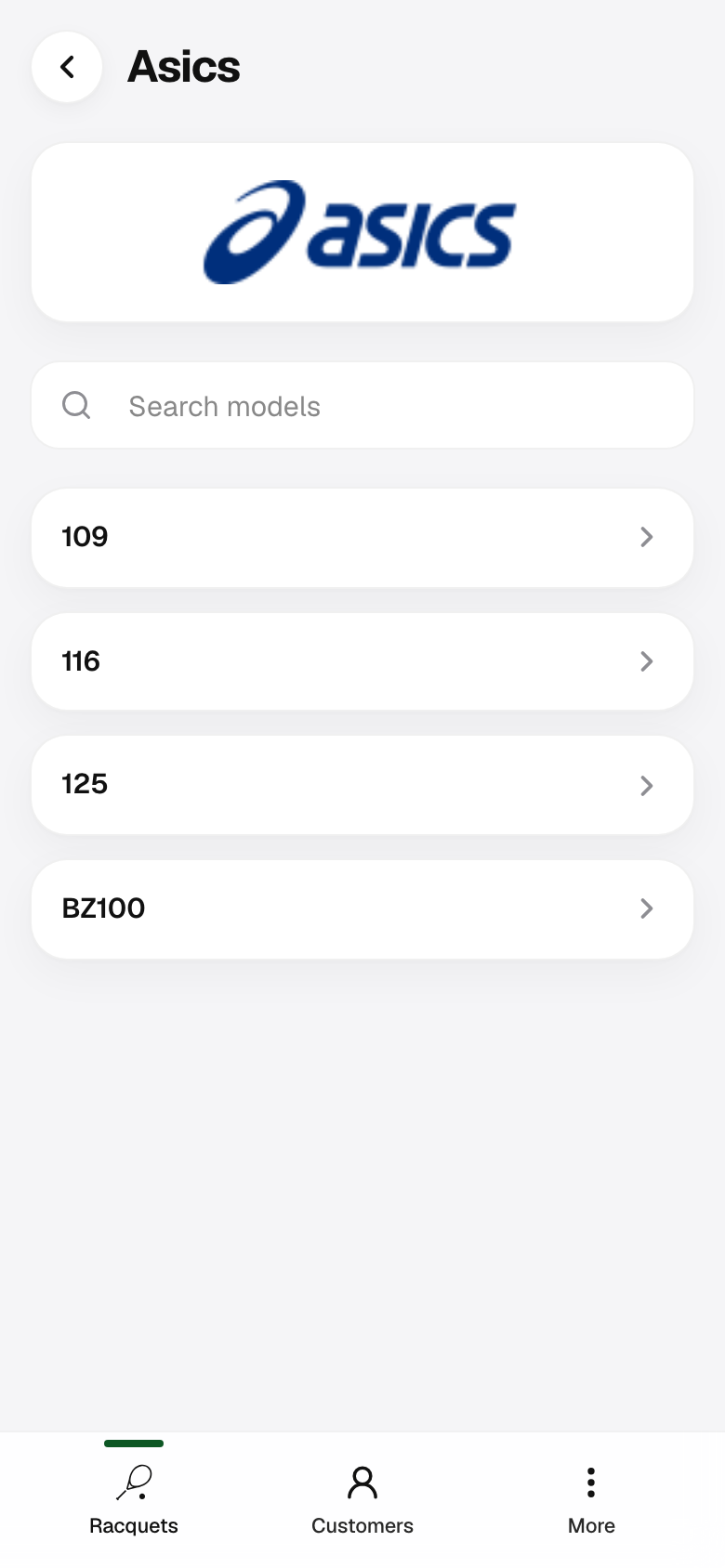
Best when you are looking up pattern and specs, or you have not chosen the customer yet.
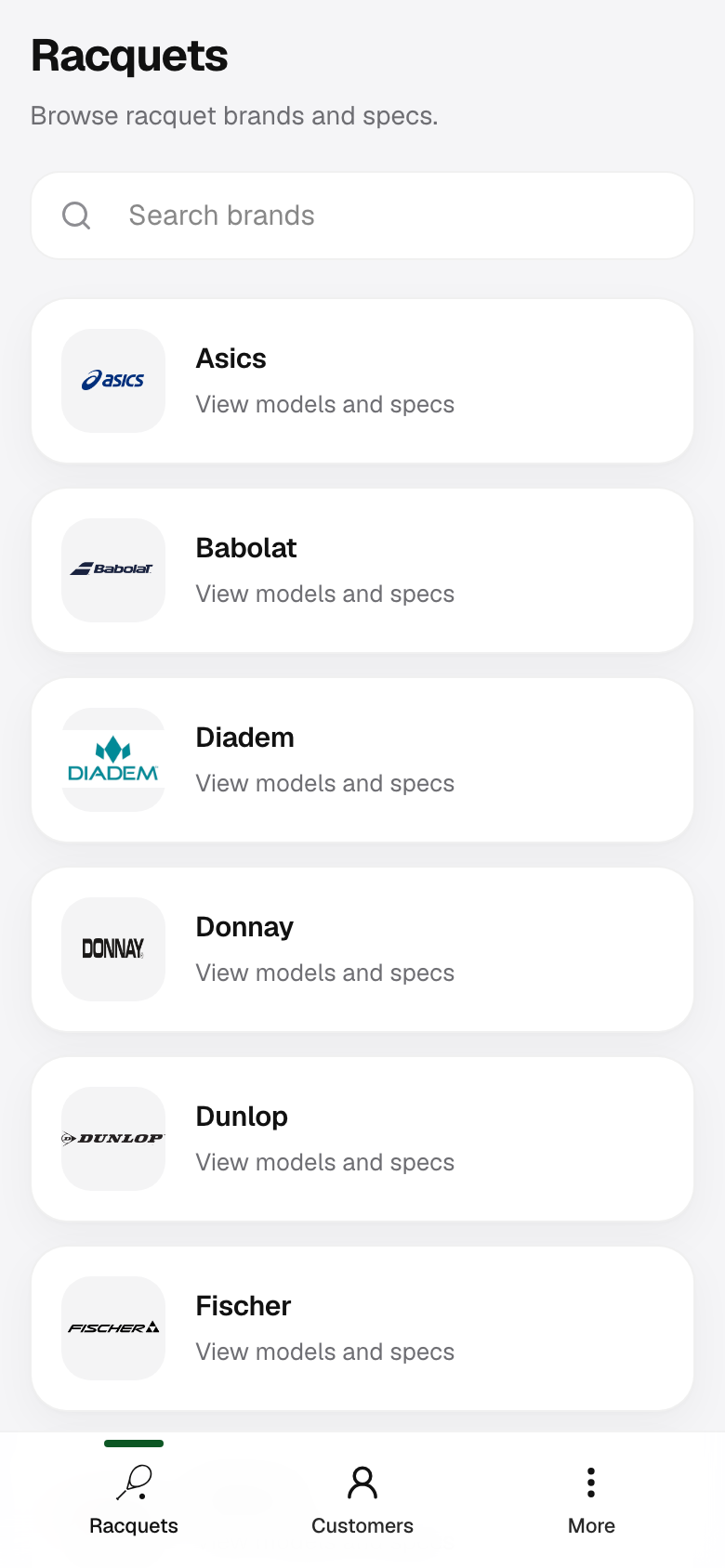
Tap Racquets in the bottom navigation. Search or browse to a brand, then open a model to see pattern, tension, and length specs.
On a wide screen (desktop), pick a brand in the left column to load models and specs on the right.
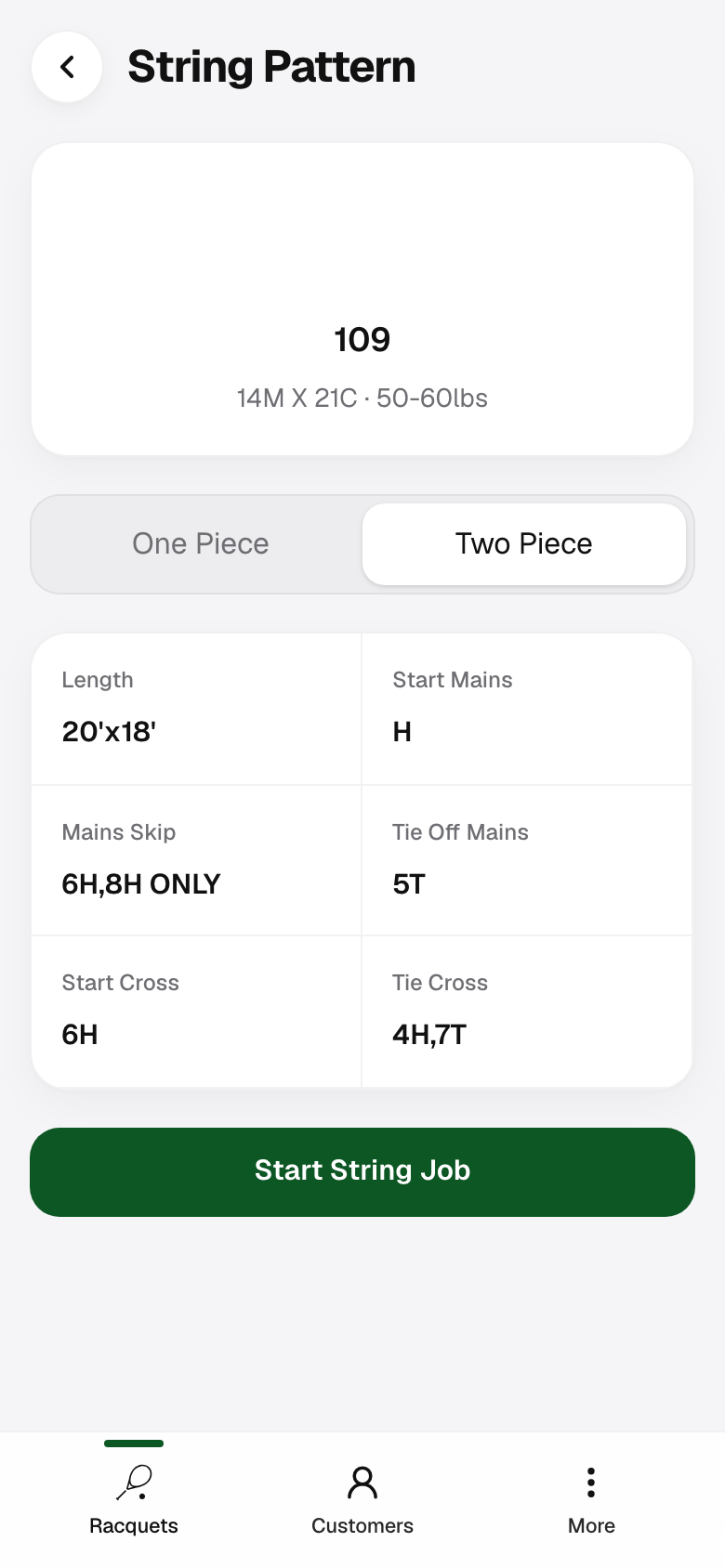
On the model page, switch One Piece or Two Piece when the racquet supports both. Tap Start String Job at the bottom.
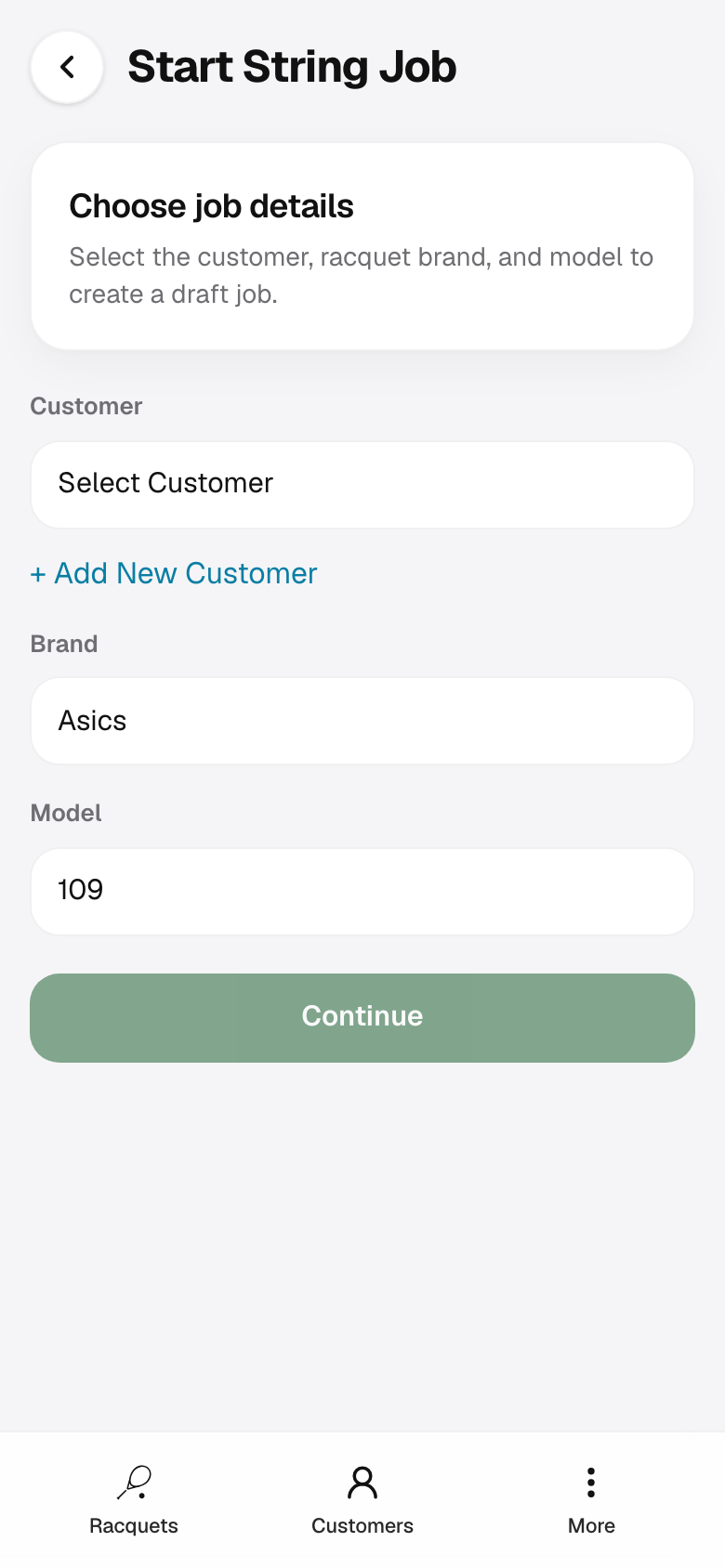
If you did not start from a customer profile, you land on Start String Job with brand and model already filled in. Select the customer (or + Add New Customer), then tap Continue.
Brand and model dropdowns are on this screen if you opened Racquets from the tab and need to change them.
If search finds no brand or model, you can still start a job.
After searching, use Start String Job on the empty results card (or submit a pattern request first). Enter brand and model details, then select a customer on the next screen — same flow as a custom racquet request tied to a new draft job.
Either path opens an in-progress string job you can work through.
Set mains and crosses, tensions, and notes as you string. When the racquet is ready for pickup, use the mark complete guide. If you invoice at pickup, see the invoicing walkthrough.