Enable invoicing on your profile
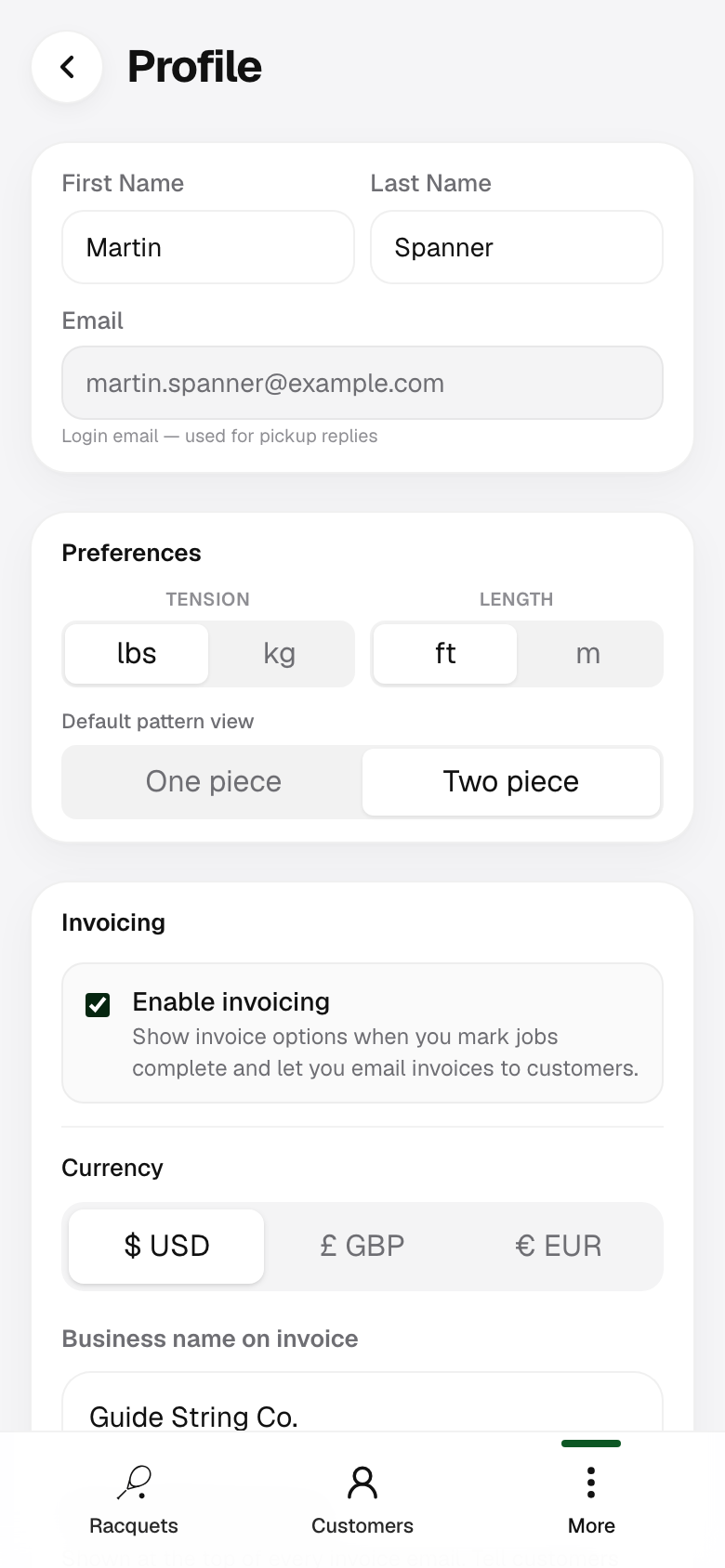
In the app, open More → Profile. Scroll to the Invoicing card and check Enable invoicing, then tap Save Profile.
Until this is on, the mark-complete sheet only offers pickup email — not pickup with invoice.
Help Center · Invoicing
Turn on invoicing in your profile, set how customers pay you, then send a pickup email and invoice together when you mark a job complete. For pickup only, use the mark complete guide. To open a job first, see start a string job.
In the app, open More → Profile. Scroll to the Invoicing card and check Enable invoicing, then tap Save Profile.
Until this is on, the mark-complete sheet only offers pickup email — not pickup with invoice.
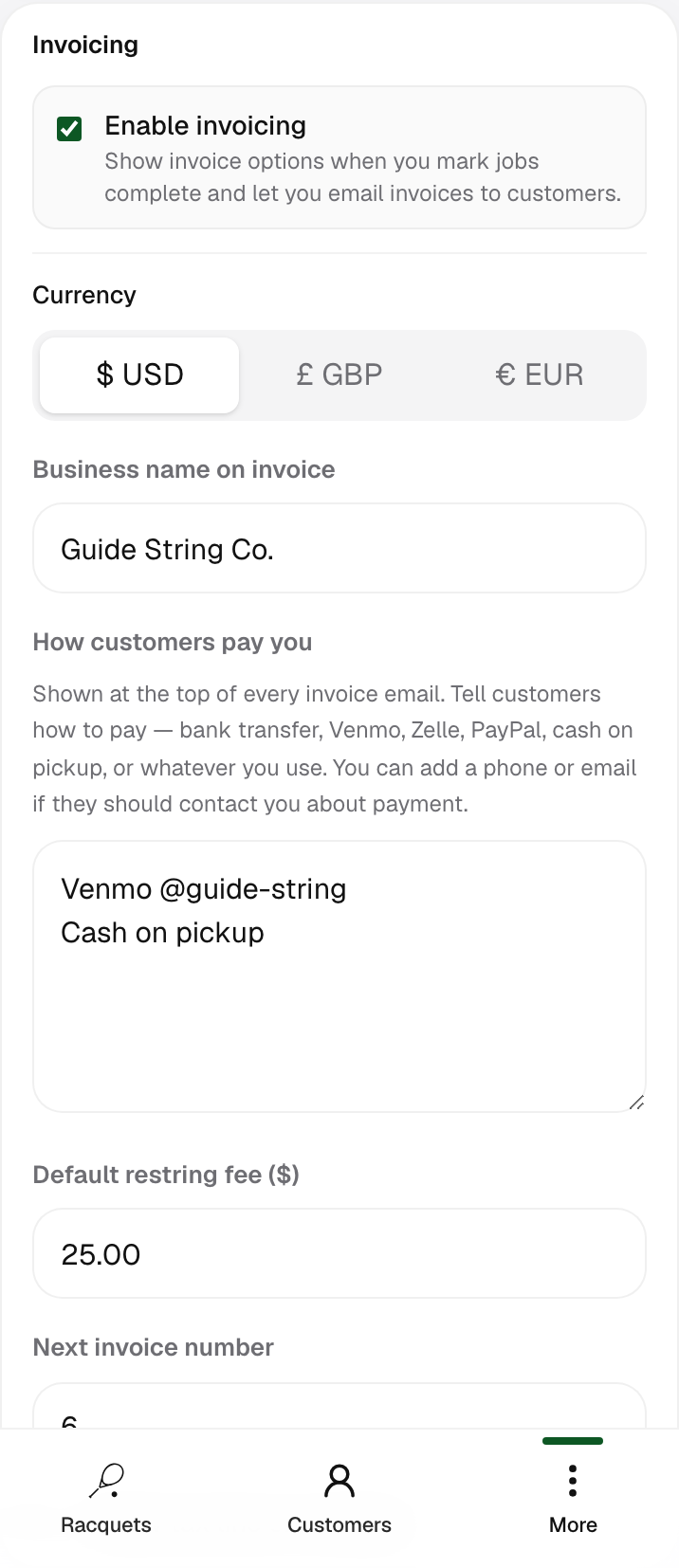
With invoicing enabled, the same card expands so you can configure:
Save profile again after any changes.
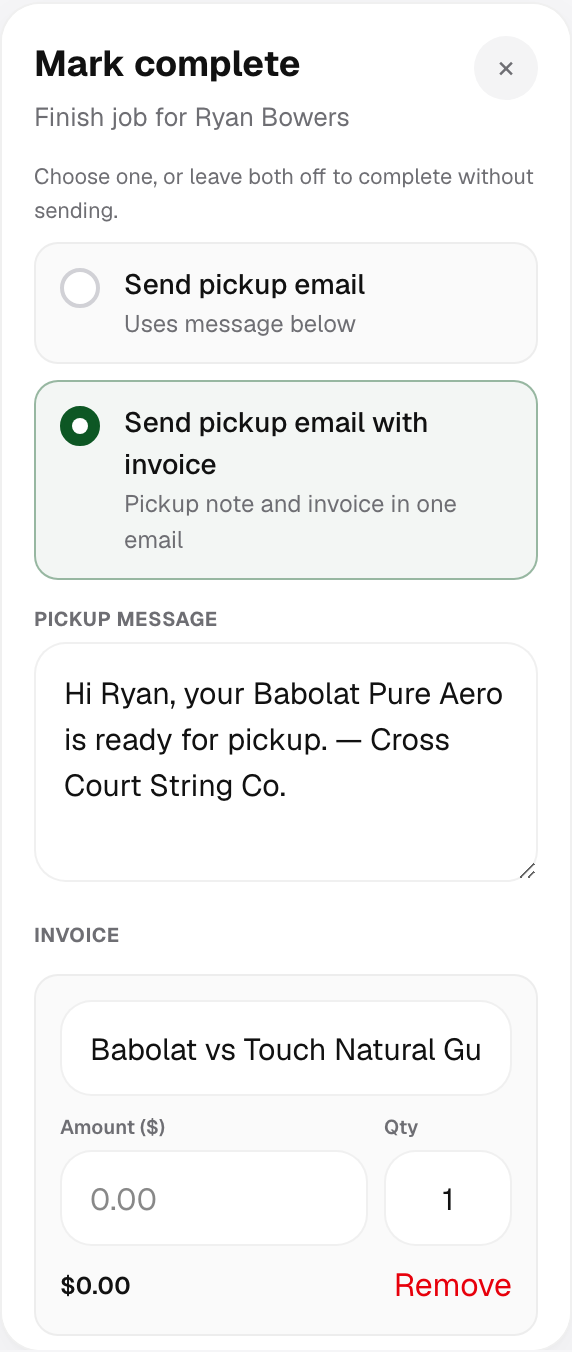
Open an in-progress job and tap Mark complete (or use the green check on the customer’s job list). On the sheet:
String Maven sends one email with both the ready-for-pickup note and the invoice — not two separate messages.
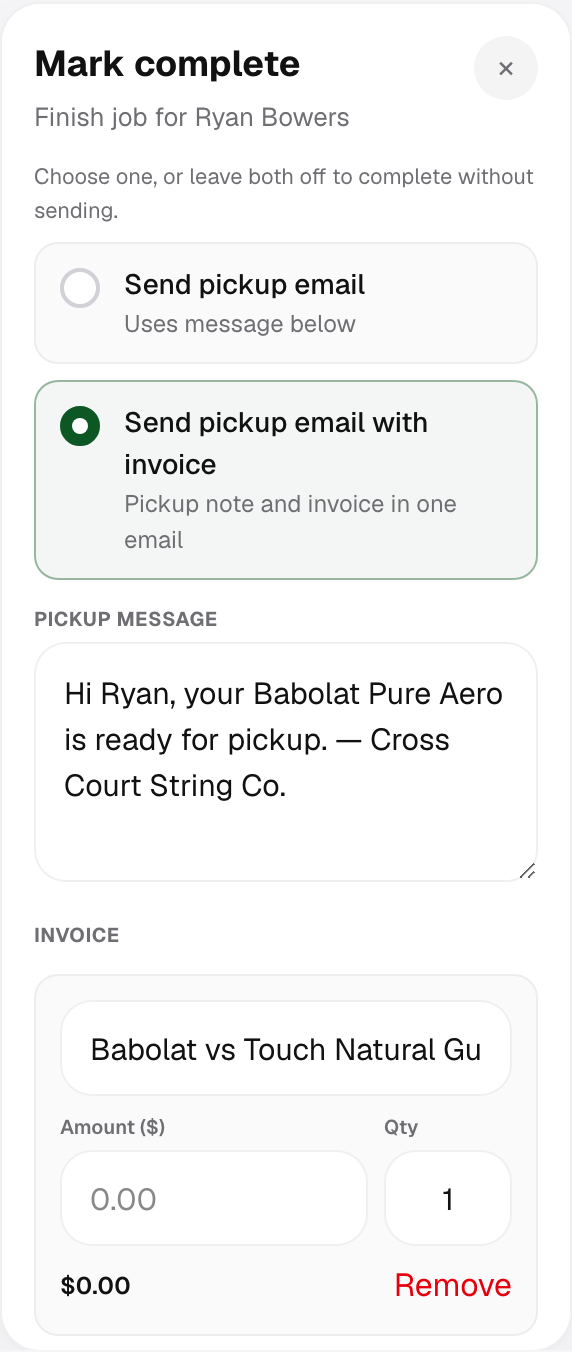
When pickup + invoice is selected, the sheet shows editable lines (for example restring, supplies, or other charges). Amounts use your profile currency. If you configured tax, the total includes it automatically.
The invoice option stays disabled until the total is greater than zero — add or adjust amounts on at least one line.
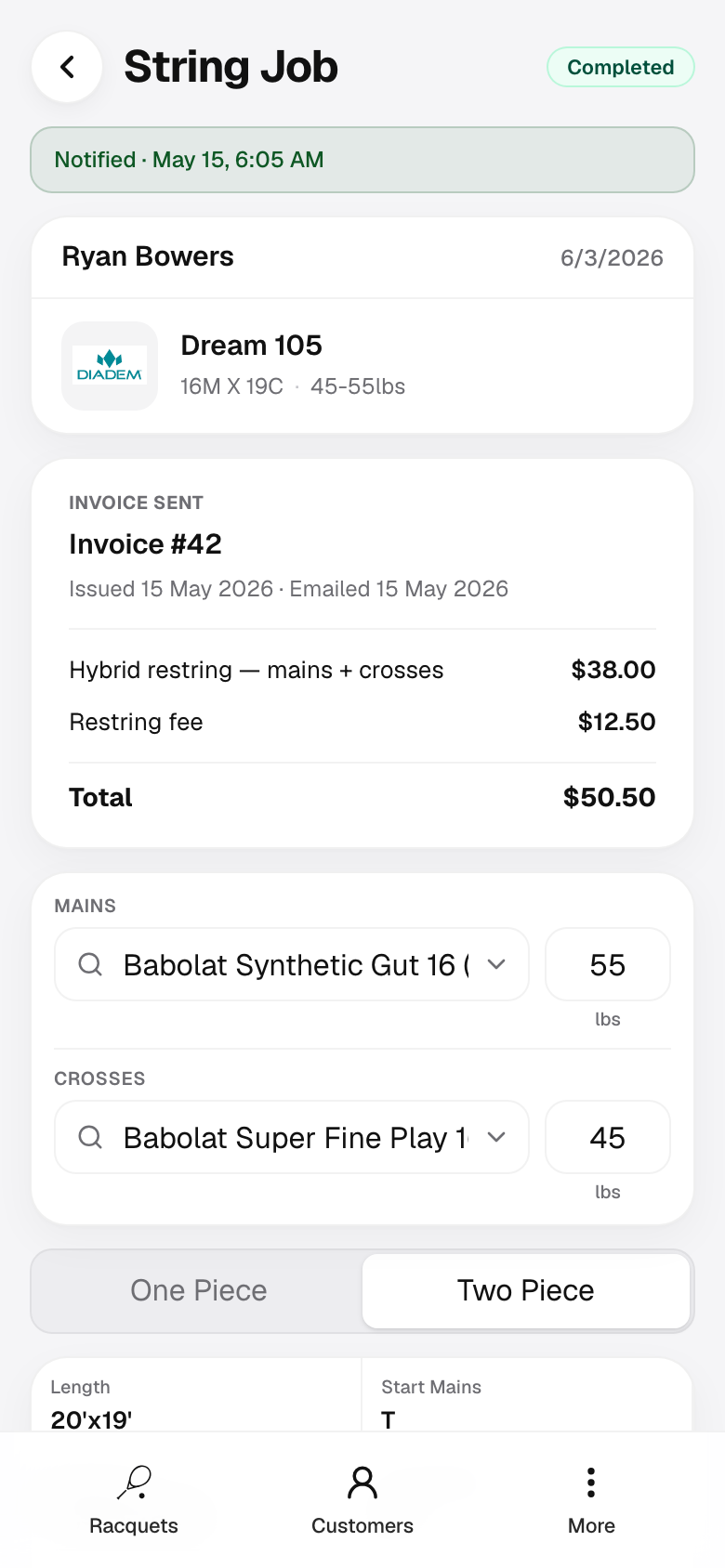
The job shows Complete. You’ll see pickup delivery status (email sent or not) and an Invoice sent card with invoice number, dates, line summary, and total.
The customer receives the combined email from String Maven’s verified address with your payment instructions and line items. They can reply to your login email.