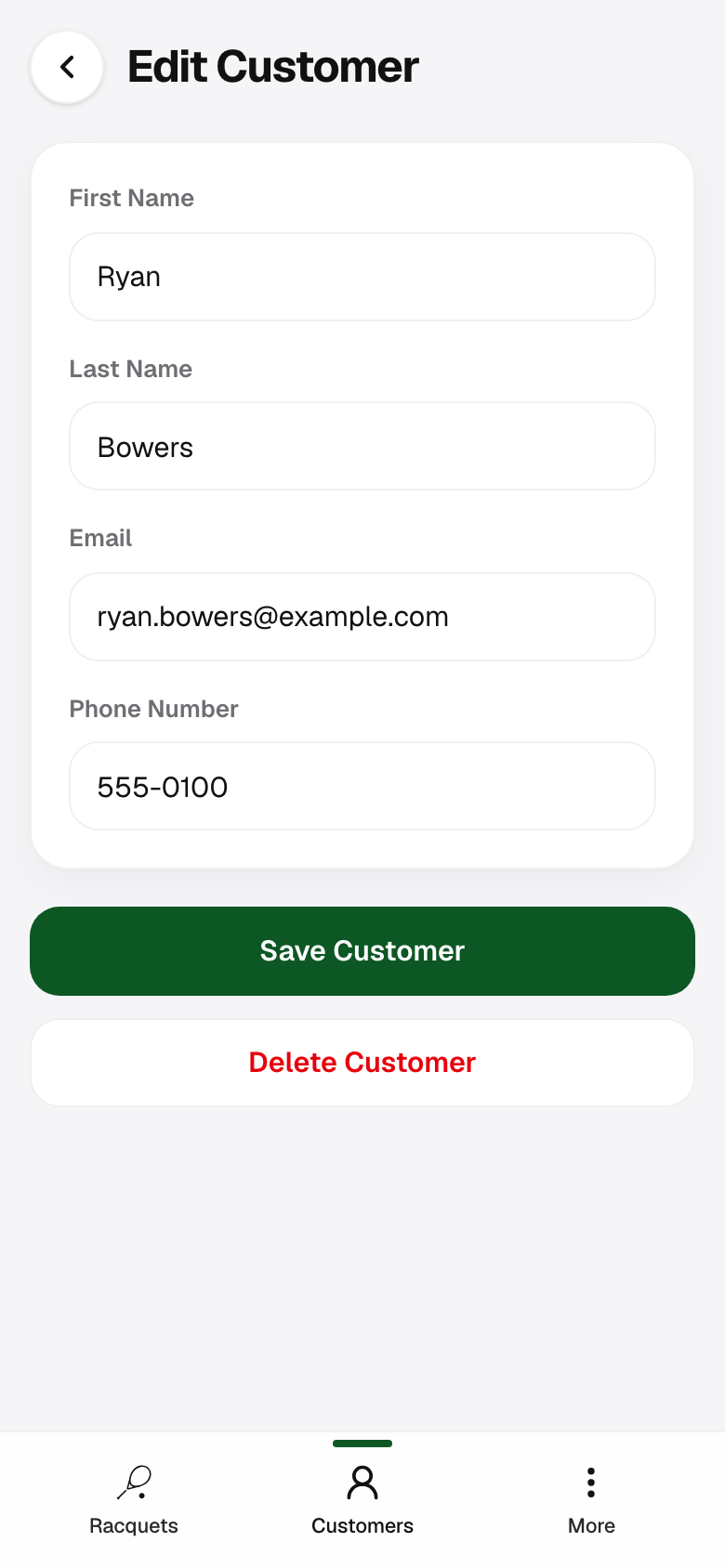
Add a customer email
Pickup emails need an address on file. From Customers, open a customer and tap Edit, then enter their email and save.
Help Center · Mark complete
Finish a string job and optionally send a pickup email from your verified String Maven address. Replies go to your login email. New to the app? See start a string job. For pickup plus invoice, see the invoicing guide.
Pickup emails need an address on file. From Customers, open a customer and tap Edit, then enter their email and save.
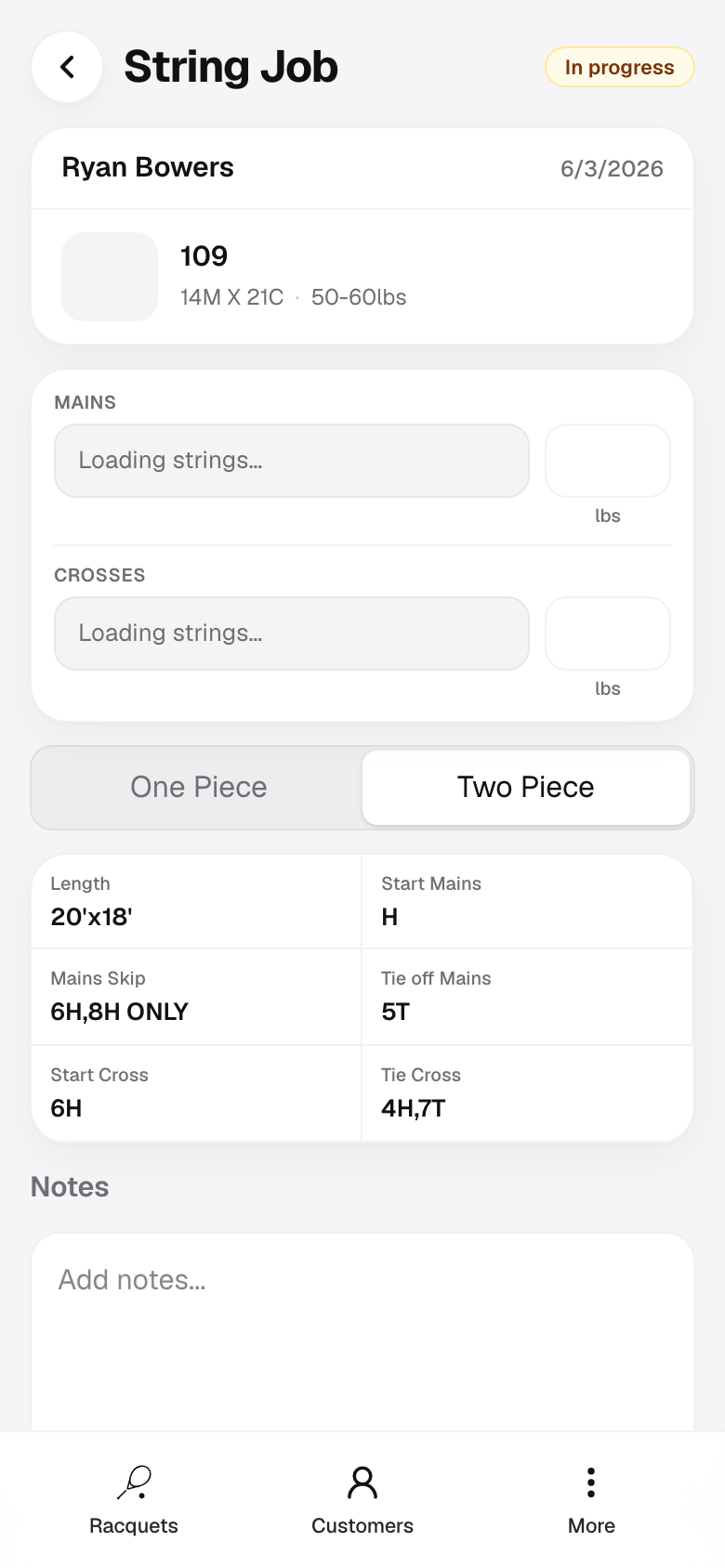
Go to the job from a customer profile or your jobs list. Scroll to the bottom and tap Mark complete when the racquet is ready.
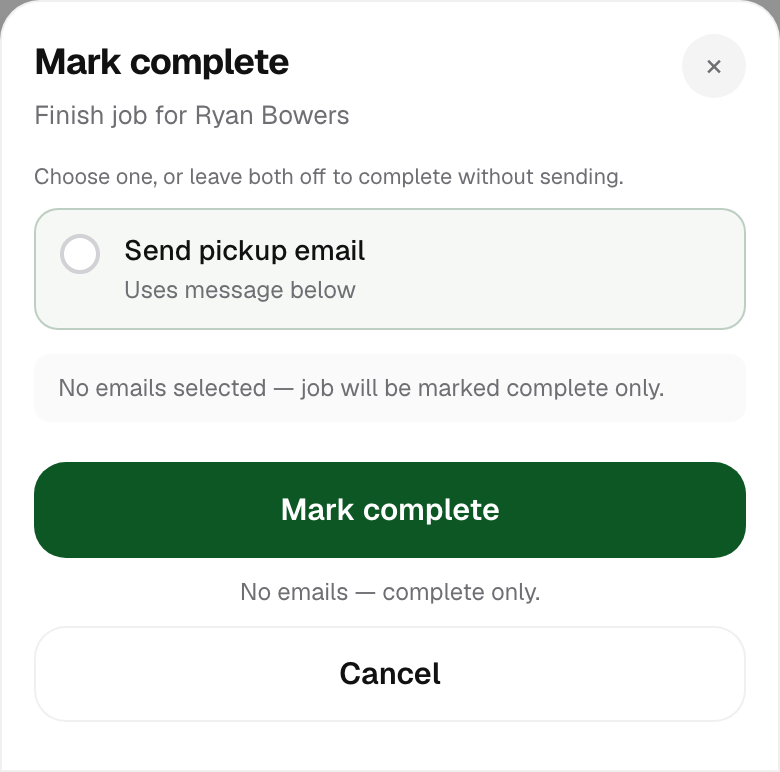
The sheet opens with email options at the top. Tap one to select it; tap again to turn it off. Leave both off to finish the job with no email.
Tap Mark complete at the bottom (not separate send buttons). A short line under the button confirms what will be sent, for example “Will email pickup notice.”
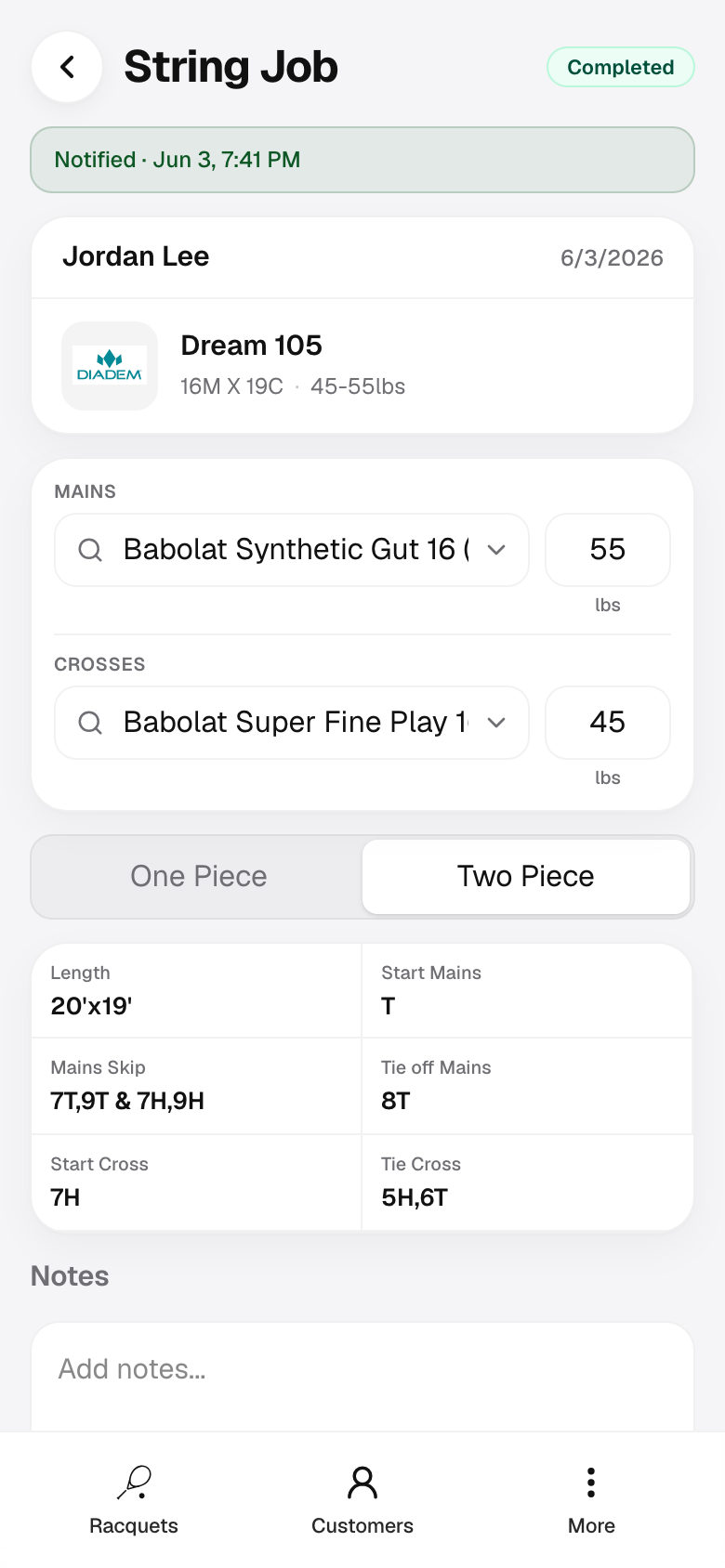
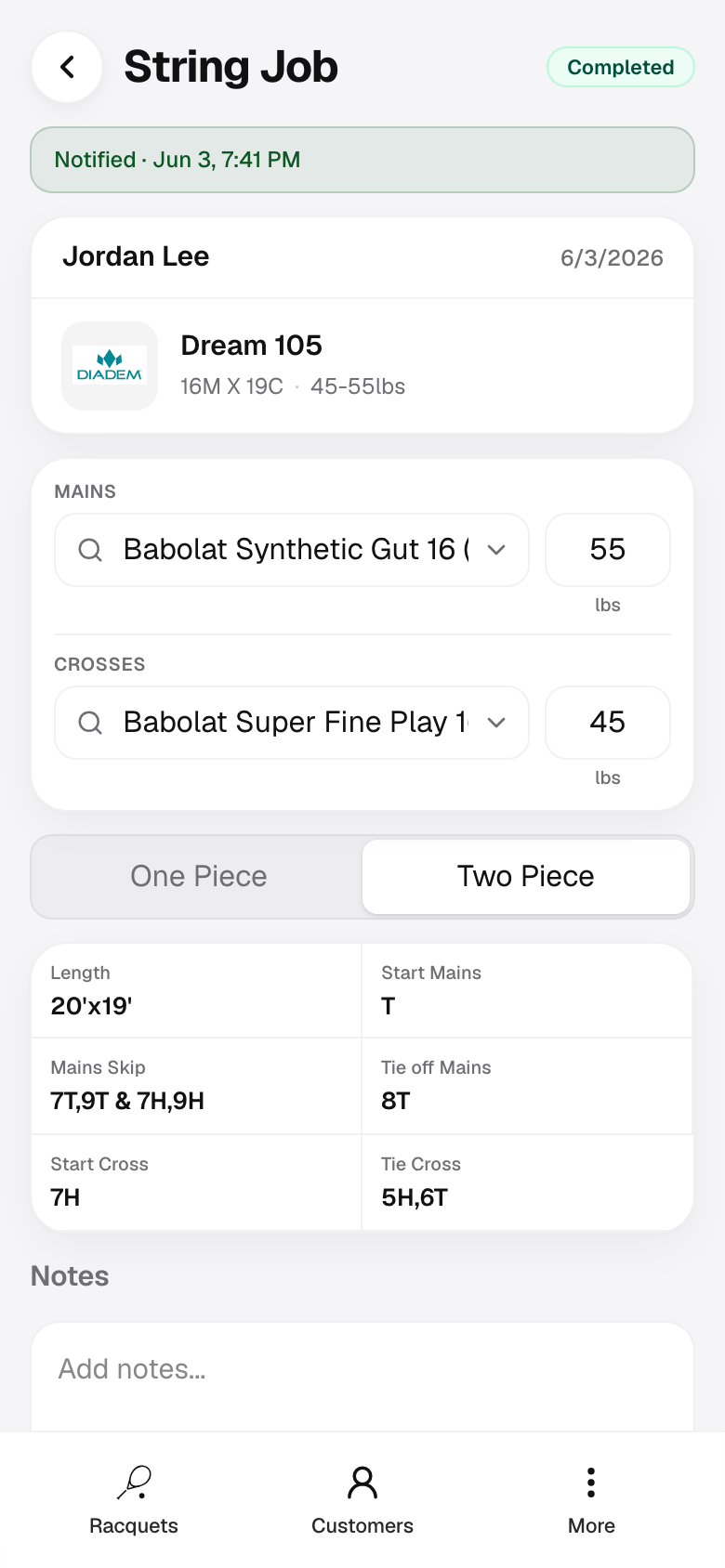
After you finish, the job shows a green Complete badge. Under the title you’ll see Email sent with a timestamp, or No email sent if you skipped notification.
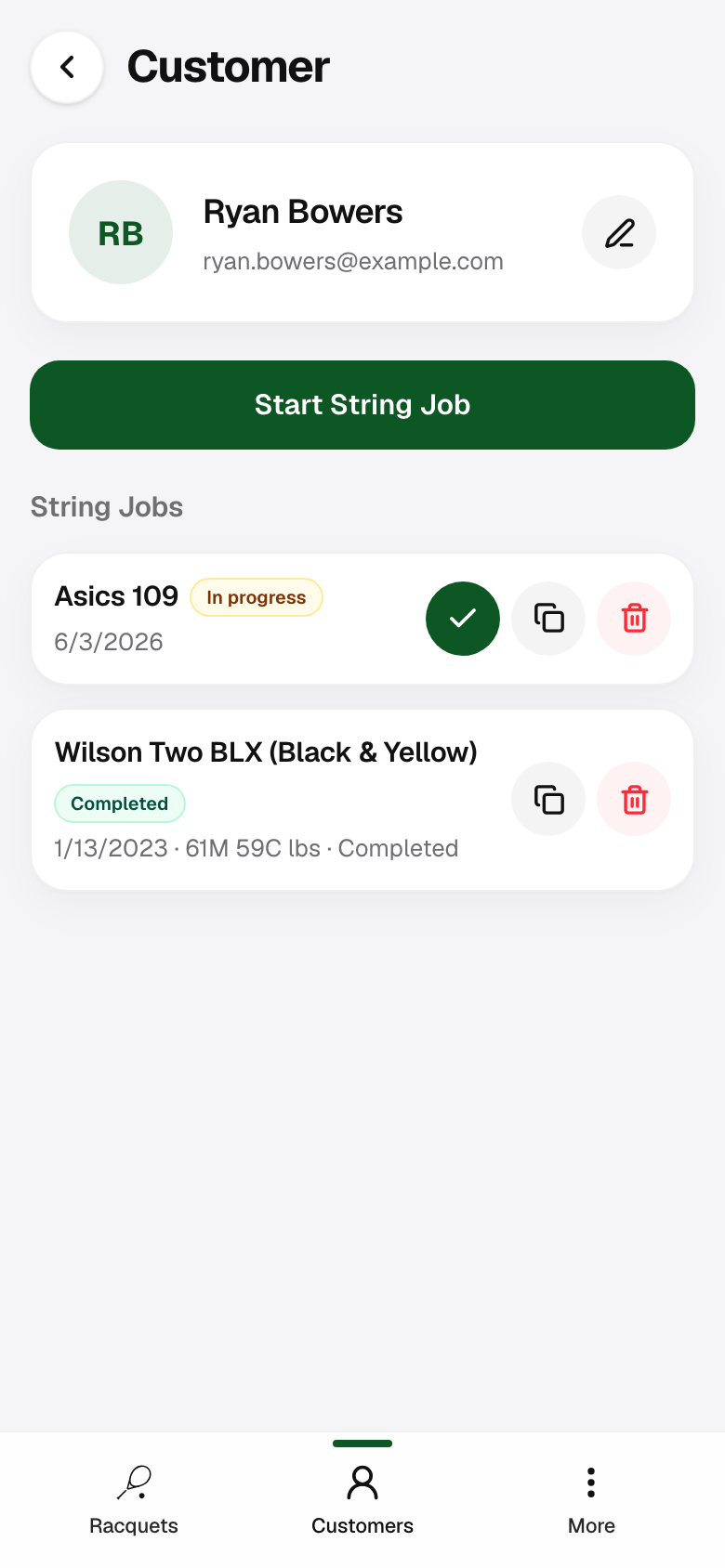
On a customer’s page, tap the green check on an active job to open the same mark-complete flow without opening the full job first.
On a completed job, use Send pickup email if you marked complete without emailing, or Resend pickup email to send again with an updated message.